How to export receipts to Excel, PDF and images for your accountant
Choose years, months, categories and folders in Claim Kira, review the matching receipts and export a Proof Pack or receipt images.
Read the guide →Use a named folder to bring related receipts together in Claim Kira. A folder can represent a Penang work trip, a client photography project or company expenses. Add the relevant receipts, check the group in Insights, then export its records when needed. Removing the grouping leaves the original receipt records, images and details in All Receipts.
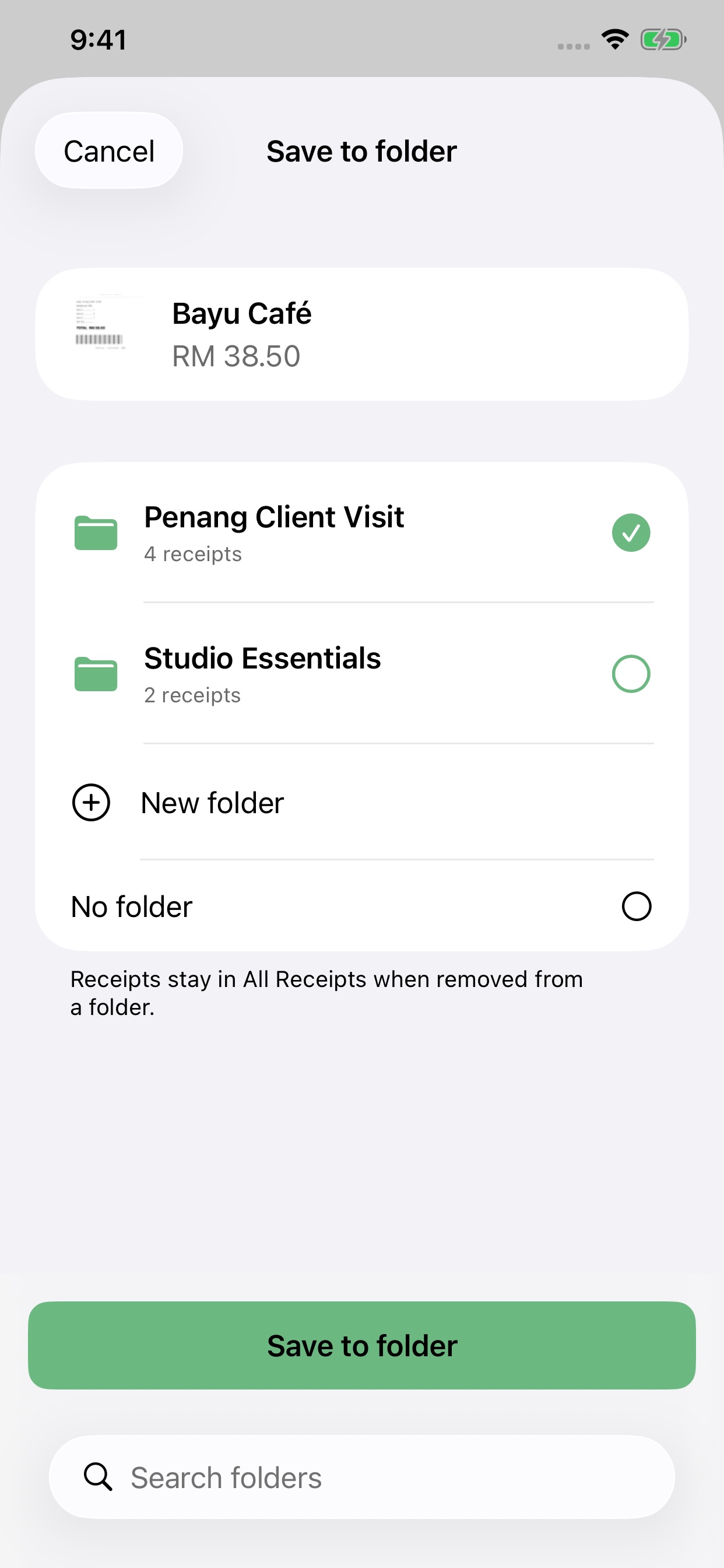
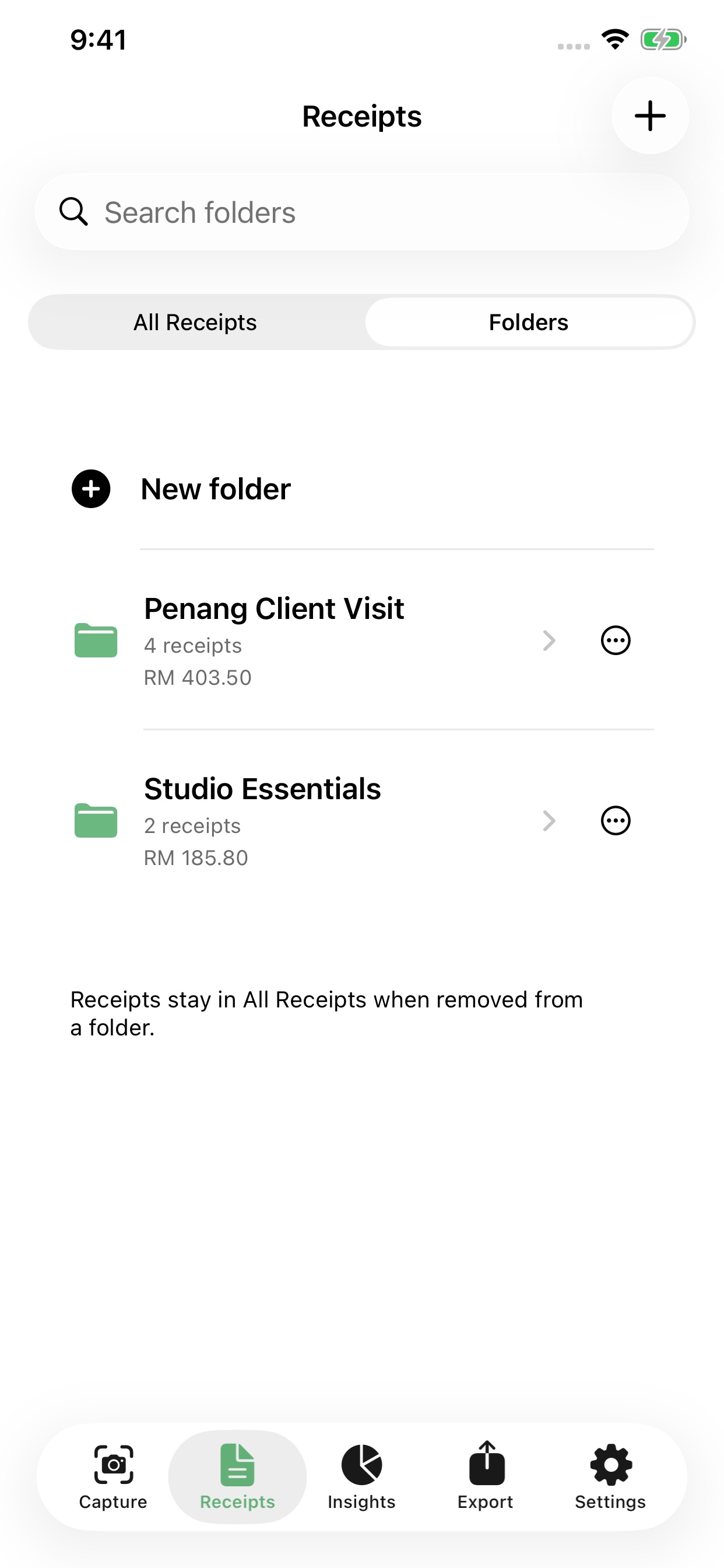
Start with the reason you will need these records again. “Penang client visit · October 2026” is easier to recognise than “Trip 1”. For repeat work, use a consistent pattern such as client, job and month. Folders organise supporting receipts; they do not create separate accounts or replace your accounting records.
Open a receipt and tap + at the top to choose a folder or create one. Use Receipts > Folders to manage the group. After scanning, finish the scanner and check the saved receipt details. Compare merchant, receipt date, invoice number and final total with the image; correct any mistakes before marking it verified or exporting.
In Insights, select the folder and check the other active filters. A month, category or claim-type filter can narrow the displayed receipts and spending. If a group appears incomplete, first check those filters, the receipt dates and folder membership. Recorded spending is a total of the selected records, not an approved claim amount.
Choose the folder in Export and review the selection summary before creating files. In Receipts > Folders you can reorganise the group or delete the folder. Removing a receipt from a folder, or deleting the folder, removes that grouping only. Deleting the actual receipt is a separate action. Keep a current app backup outside Claim Kira before major housekeeping.
Choose years, months, categories and folders in Claim Kira, review the matching receipts and export a Proof Pack or receipt images.
Read the guide →Save a restorable Claim Kira backup outside the app, understand how it differs from a Proof Pack, and prepare before replacing your iPhone.
Read the guide →Product workflow guidance from Mix Century Services Sdn Bhd, the developer of Claim Kira. Example folders are illustrative. Claim Kira does not approve tax deductions, issue validated e-Invoices or file tax returns. Confirm accounting treatment with your accountant.